

Found a pet wearing a TapHalo tag?
How to read a Pet ID tag with your phone
Hold a compatible phone near the NFC tag to open the pet's profile. There is no app to download, no account to create and no battery inside the tag.
Unlock your phone
Use a compatible NFC-enabled iPhone or Android phone. Make sure the phone has an internet connection; you do not need the TapHalo app.
Hold it close to the tag
Bring the phone's NFC reading area within a few centimetres of the tag. Hold it still for a moment rather than tapping it quickly.
Open the notification
A notification or web-address prompt should appear. Tap it to open the pet's TapHalo profile in your browser.
Help the pet get home
Read the details the owner has chosen to share and use the contact option on the profile. Follow any safety or care notes shown there.
See what to look for
The tag and the tap position
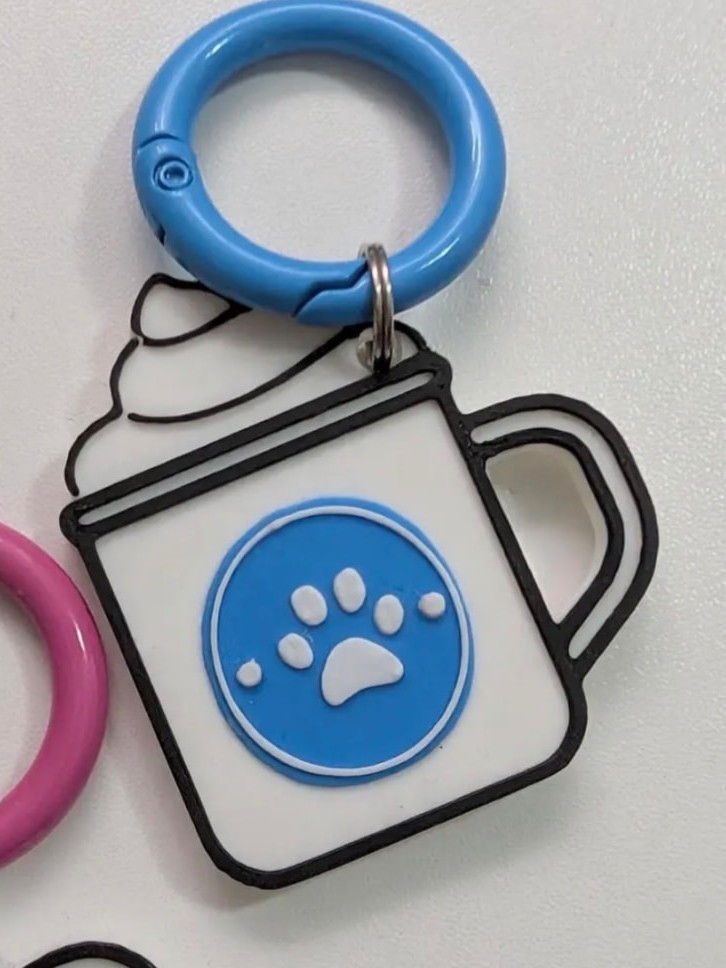
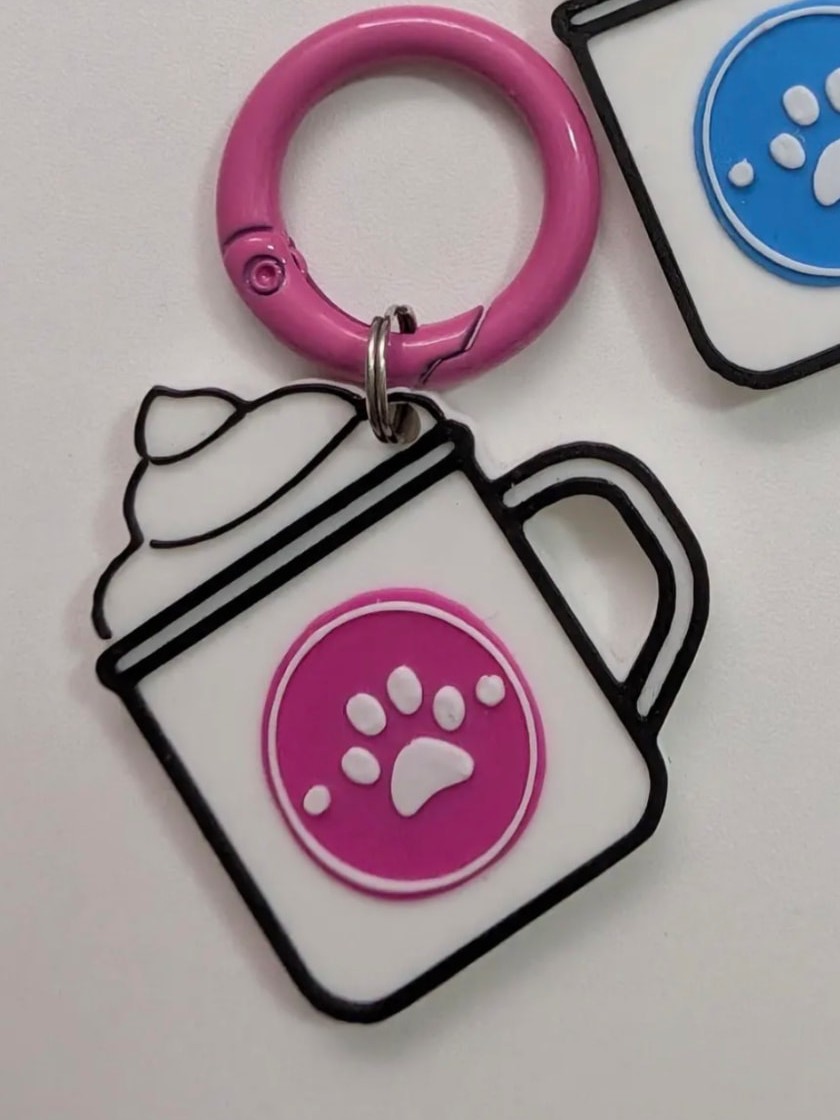
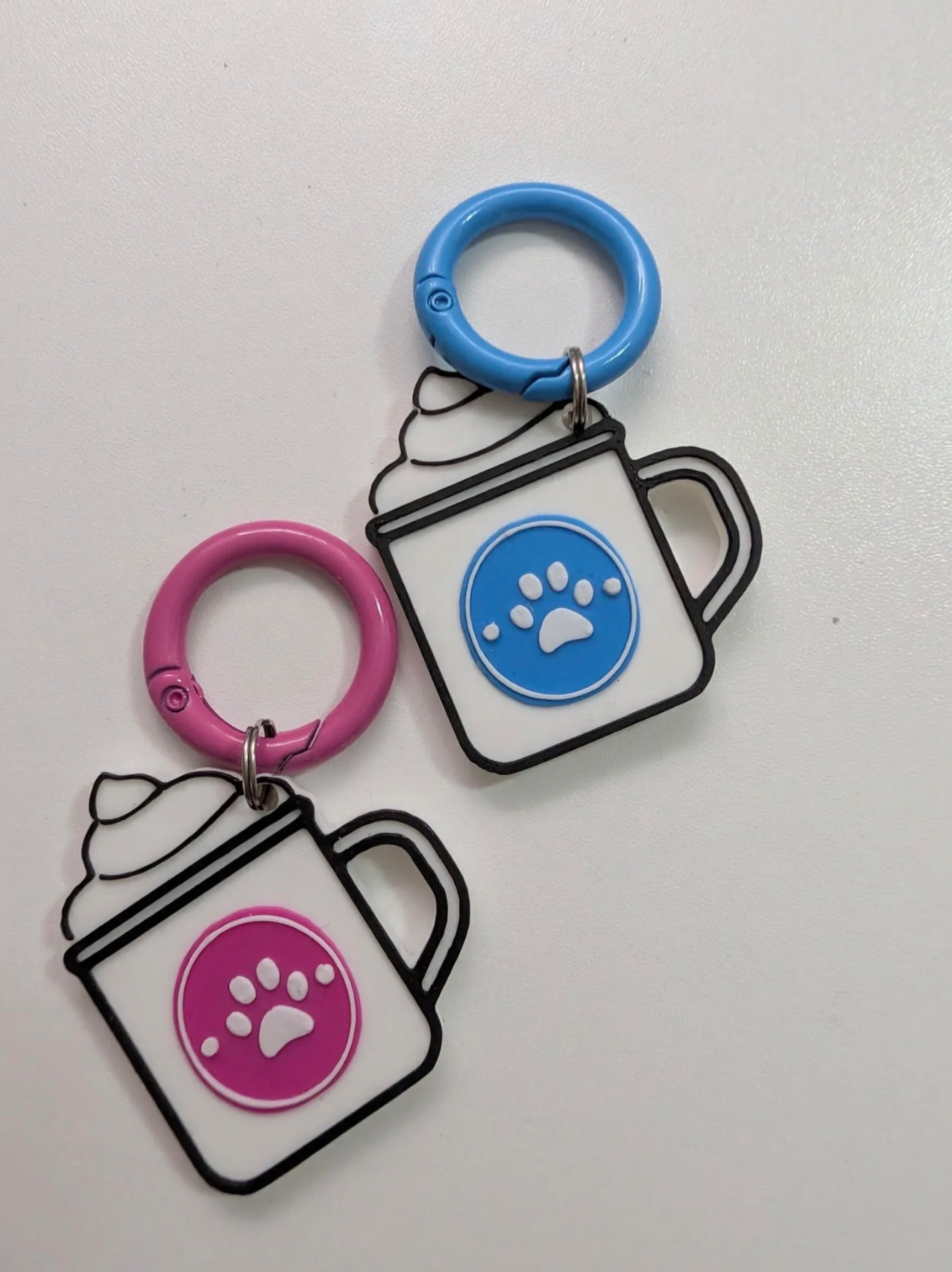
These are photographs of the real TapHalo Pet ID tag, available in blue and pink. Photos of the tag's back and a phone reading it will be added when available.
Real product photo coming soon
The printed tap or reading instruction.
Real product photo coming soon
A real phone held at the correct reading point.
Where to hold your phone
iPhone
Hold the top edge of the unlocked phone close to the tag. On supported iPhones, the NFC reader normally works automatically.
Android
Hold the back of the unlocked phone close to the tag, usually around the upper or central area. NFC may need to be switched on in Settings.
The NFC reading point varies by phone model. If one position does not respond, slowly move the phone across the tag.
If nothing happens
- Unlock the phone and make sure it is connected to the internet.
- Remove a thick or metal phone case, then try again.
- Hold the phone still for one or two seconds and move it slowly over the tag.
- Try the other end or the centre of the phone because NFC readers are positioned differently.
- On Android, check that NFC is switched on in the phone's settings.
- If a web address is printed on the tag, type it into the phone's browser.
Good to know
What the tag does — and does not do
The tag stores a web address, not the owner's personal or medical information. That address opens a profile containing only the details the owner has chosen to share. The tag does not track the pet's live location and is not a GPS device.
A TapHalo NFC Pet ID supports identification but does not replace microchipping or any legally required collar identification.
More questions? Visit the NFC Pet ID FAQ.